Template imports let you pull a governed bundle -- a pre-built module or set of bricks -- into your course.
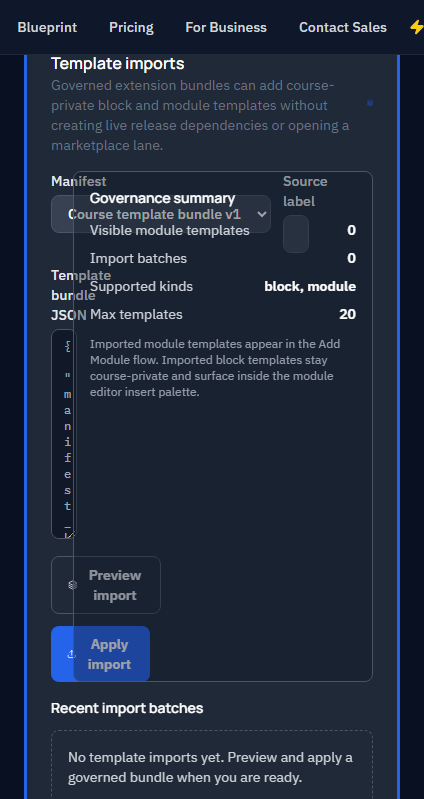
Panel overview
The template imports panel contains six key areas:
Manifest selector
The manifest describes what is inside the template bundle -- module titles, brick types, estimated learner time, and content version. Browse available templates and select the one that fits your course structure.
Source label
The source label field records attribution so learners and reviewers can see where the content came from. Fill this in accurately -- it appears on the published module and in the review queue.
Preview button
Use the Preview button before applying. Preview is non-destructive -- it shows you exactly what the import will add or change without modifying your course. Always preview first.
Governance summary
The governance section records who applied what and when. It provides an audit trail of every template import applied to the course, including the user, timestamp, and template version.
Apply button
Once you are satisfied with the preview, click Apply to pull the template content into your course. This action modifies your course modules, so review the preview carefully before proceeding.
Rollback button
If an import does not work out, the Rollback button reverts any apply. Rollback restores the course to the state it was in before the template was applied.
Workflow
- Open the template imports panel in the course editor.
- Select a manifest from the available templates.
- Fill in the source label for attribution.
- Click Preview to see what will change.
- If satisfied, click Apply.
- If not, close the preview and try a different template.
- Use Rollback if you need to undo an applied import.